Installing Single Instance Oracle 12c Database on Linux
6/30/2013 11:47:00 PM
However mentioned package cannot be found on ULN. Instead install previous version's pre-install package. It does the job as well:
Create installation directory and grant required permissions:
$ mkdir /u01
$ chown oracle:oinstall /u01
$ chmod 775 /u01
As oracle, which is created by pre-install package, run the installer from the directory where you unzipped two installation zip files:
$ ./runInstaller
Graphical installation starts:

Skip updates

You can choose to create a database right after software installation or you can choose to install software first then run DBCA to create the database.

Select system class:

Select GI option:

I choose to follow advanced installation path to see what is there:

Select language(s):

Select database edition to install:

Specify installation paths:

Specify inventory directory:

Select database type:

Specify database name. As a new feature, you can choose to create a multi-tenant database.

Configure database by specifying memory options, character set and sample schema installation:

Specify storage, I set the path of mount point of NAS disk:

Specify Cloud Control details if you'll manage the instance through it:

Choose to use FRA and set path -or ASM- for FRA:

Set passwords for built-in users:

Set system groups:

Investigate summary and if there's anything you need to chance:

Installation starts. Run the root scripts when prompted:


12c DBCA
If you choose to install software only during installation or installation failed to create the database - as I've experienced - you can run database configuration assistant (DBCA) which is located under ORACLE_HOME/bin:
$ cd /u01/app/oracle/product/12.1.0/dbhome_1/bin
$ ./dbca
Graphical installation starts:

I choose to follow advanced installation path to see what is there:

Select the template of database type:

Set database names including container database:

Choose to configure database with EM Database Express (previous version's dbconsole) or with Cloud Control:

Set passwords of built-in user:

Set listener configuration, leave it as default:

Set storage specifications:

Set database options:

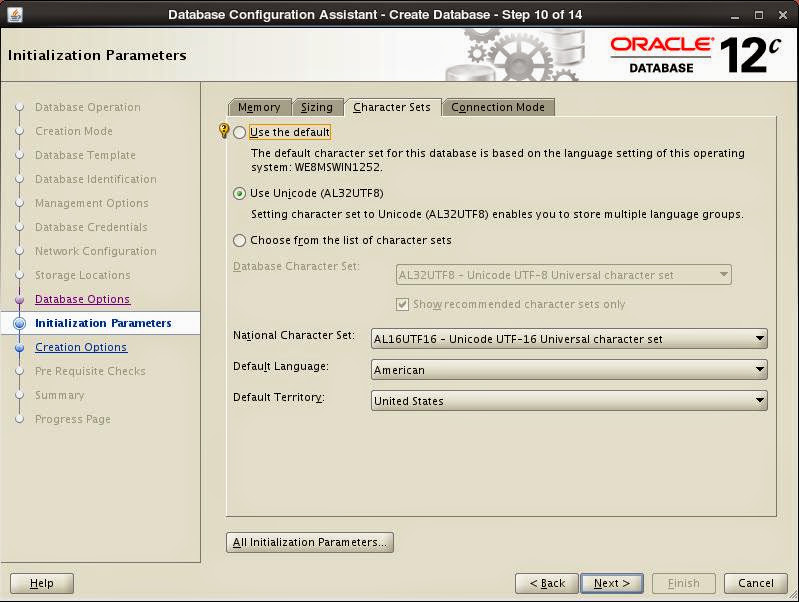
Set initialization parameters for memory management, number of Oracle processes, character set and connection mode:




After pre-requisite check installation starts. When finished, necessary information is displayed:

Enjoy and discover your first 12c database...
Performance Improvement for ODP.Net OracleDataAdapter
4/15/2013 08:24:00 PM
using (OracleConnection conn = new OracleConnection())
{
OracleCommand comm = new OracleCommand();
comm.Connection = conn;
comm.FetchSize = comm.FetchSize * 8;
comm.CommandText = "select * from some_table";
try
{
conn.Open();
OracleDataAdapter adap = new OracleDataAdapter(comm);
System.Data.DataTable dt = new System.Data.DataTable();
adap.Fill(dt);
}
finally
{
conn.Close();
}
}
Notice the line with blue font, fetch size of command object increased by 8 times its default which is 128 KB at ODP.Net 11.2.0.3. OracleDataReader also has the FetchSize property. By increasing fetch size, you increase the cache size in memory to fetch rows.
What we gained is up to 96% performance improvement. Here are some timings with different fetch sizes:
| Fetch Size | Timing (MI:SS.FF3) |
| Default (128 KB) |
05:20.290
|
| Default x 8 (1 MB) |
00:52.941
|
| Default x 32 (4 MB) |
00:26.008
|
| Default x 64 (8 MB) |
00:12.409
|
It's a easy way to improve your application's performance, isn't it.
Running Toad on Linux
3/17/2013 08:02:00 PM
If you want to use Linux as your desktop OS however want to keep using Toad, thanks to Wine it is possible. I've succeed running Toad 10.5 on 64-bit Ubuntu 12.10.

These are steps to install Toad:
1. Install Wine
$ sudo add-apt-repository ppa:ubuntu-wine/ppa
$ sudo apt-get update
$ sudo apt-get install wine1.4
2. Configure Wine as 32-bit. Since you are running a 64-bit OS, Wine runs 64-bit basis as well. However Toad is a 32-bit application that requires 32-bit Oracle client. Therefore you need configure Wine to run on 32-bit basis.
$ rm -rf ~/.wine*
$ WINEPREFIX='/home/<user_name>/prefix32' WINEARCH='win32' wine 'wineboot'
3. Install requirements. I recommend installing .Net Framework first because it's a bit problematic and takes the longest time. During its setup, you will be asked to download different versions and place into Winetricks's cache directory. So you will need to run the command several times.
$ winetricks dotnet35sp1
After successfully completing previous step, install rest of the requirements.
$ winetricks gecko fontfix gdiplus msxml3 msxml4 msxml6 vcrun2005sp1 vcrun2008 winxp volnumcd
4. Install Oracle Client. Copy installation files of Oracle Client for 32-bit Windows into ~/.wine/drive_c/tmp. Unzip the installation and run setup. During setup, choose "Runtime" option and ignore any prerequisite check failures.
$ wine "c:\tmp\client\setup.exe"
Do not forget to copy your tnsnames.ora file to ~/.wine/drive_c/app/<user_name>/product/11.2.0/client_1/network/admin after setup.
5. Install Toad. You might copy setup file again into ~/.wine/drive_c/tmp as well. To run setup:
$ wine "c:\tmp\toad.exe"
6. Run Toad. Installation creates desktop shortcuts, so it's possible to run Toad from these shortcuts or directly through Wine:
$ wine "C:\Program Files\Quest Software\Toad for Oracle 10.5\Toad.exe"
or
$ wine ~/.wine/drive_c/Program\ Files/Quest\ Software/Toad\ for\ Oracle\ 10.5/Toad.exe
Enjoy Linux
Data Pump Options
1/30/2013 10:38:00 PM
1. Create a directory in ASM disk group:
SQL> alter diskgroup RECOVERY add directory '+RECOVERY/DPUMP';
2. Create a directory in the database pointing to the ASM directory:
SQL> create directory ASM_DIR as '+RECOVERY/DPUMP';
3. Grant write on directory created above to the user you'll use while exporting:
SQL> grant read, write on ASM_DIR to <export_user>;
3. Create database a link:
SQL> create public database link target_db connect to <remote_user> identified by <password> using '<tns_entry>';
It's required that both the local and remote users are granted to the EXP_FULL_DATABASE role.
Exporting
Now it's time to export. At local server, run:
$ expdp NETWORK_LINK=target_db DUMPFILE=ASM_DIR:dump_file.dmp LOGFILE=DATA_PUMP_DIR:export.log FULL=Y EXCLUDE=STATISTICS COMPRESSION=ALL PARALLEL=8
To briefly explain parameters given:
- NETWOK_LINK is the one pointing to remote database. This is how we export remote database.
- As you may see, dump file is being created under directory ASM_DIR pointing the directory in ASM disk group.
- Notice that log file is not being created under ASM directory because it's not supported. That's why I've used default data pump directory. Also you may choose not to log by using parameter NOLOGFILE=Y instead.
- We're having a full database dump by using FULL=Y parameter. Instead you may use SCHEMAS, TABLES or TABLESPACES parameters to export/import only given schemas/tables or tablespaces.
- Our dump will not include statistics because of the parameter EXCLUDE=STATISTICS. You can use this option to exclude other objects such as tables or indexes, too. I choose to exclude statistics because I'd rather gather statistics at the database I'm going to import the dump.
- By means of the parameter COMPRESSION we'll have a smaller sized dump file. To give a hint how much could it be reduced in size, here is a few statistics I've had with different characteristics of data:
| Estimated | Actual | Gain Percentage |
| 687.7 MB | 188.13 MB | 72.64% |
| 154.3 GB | 56.44 GB | 63.42% |
| 287.2 GB | 207.93 GB | 27.6% |
- Lastly, to improve performance we use the parameter PARALLEL. Data pump is a tool you can get full advantage of parallelism. Therefore it's good to use as much as possible.
After exporting you can query and check dump files. To query files exported under ASM:
SQL> select a.name, f.bytes/1024/1024 mb, f.creation_date
from v$asm_file f, v$asm_alias a
where f.file_number=a.file_number and a.system_created='N' and f.type='DUMPSET';
To check dump file, best tool to use is again data pump, use parameter SHOW:
$ impdp DUMPFILE=ASM_DIR:dump_file.dmp NOLOGFILE=Y FULL=Y SHOW=Y
Finally, if you need to copy the dump file to somewhere else, it could be achieved by asmcmd tool:
$ asmcmd -p cp RECOVERY/DPUMP/dump_file.dmp /destination_directory
RMAN-03009 and ORA-27052 Due to Opportunistic Locking
12/31/2012 12:20:00 PM
While backing up backup sets to a secondary location which was a Windows share, RMAN job failed with the following error:
RMAN-00571: ===========================================================
RMAN-00569: =============== ERROR MESSAGE STACK FOLLOWS ===============
RMAN-00571: ===========================================================
RMAN-03009: failure of backup command on ORA_DISK_1 channel at sometime
ORA-27052: unable to flush file data
Linux-x86_64 Error: 5: Input/output error
When I digged up a little bit, I found the following lines in server's system log:
<host> kernel: CIFS VFS: No response to cmd 47 mid 2921
<host> kernel: CIFS VFS: Write2 ret -11, wrote 0
<host> kernel: CIFS VFS: Write2 ret -112, wrote 0
<host> kernel: CIFS VFS: Write2 ret -11, wrote 0
<host> kernel: CIFS VFS: Write2 ret -11, wrote 0
The problem was caused by optimistic locking property of CIFS module. If the file you are copying is large enough (in my case it was about 80 GB) through a CIFS channel, you may hit this problem. By default optimistic locking is set to 1 when the module is loaded. Disabling optimistic locking solves the problem with no performance drawback, at least I haven't observed.
To disable optimistic locking:
$ echo 0 > /proc/fs/cifs/OplockEnabled
ETL with Bulk Insert Using ODP.Net
12/12/2012 01:48:00 AM
First one is row-by-row basis. Pseudo code representing the case is as below:
For each row in the file
Read row;
Do transformations of the row;
Insert row;
loop;
To execute insert statements, I will use the method below. It takes advantage of bind variable to avoid hard parsing.
private void ExecuteNonQuery(string commandText, Dictionary<string, object> parameters)
{
using (OracleCommand comm = new OracleCommand(commandText))
{
if (orclConn.State != System.Data.ConnectionState.Open)
orclConn.Open();
comm.Connection = this.orclConn;
foreach (KeyValuePair<string, object> kvp in parameters)
comm.Parameters.Add(kvp.Key, kvp.Value);
comm.ExecuteNonQuery();
}
}
Begin a transaction: OracleCommand comm = GetTransaction();
For each row in the file
Read row;
Do transformations of the row;
Insert row: ExecuteNonQuery(comm, "<insert statement>", parameters);
loop
Commit transaction: comm.Transaction.Commit();
Methods referenced above are:
private OracleCommand GetTransaction()
{
OracleTransaction dbTran = this.BeginTransaction;
OracleCommand comm = new OracleCommand();
comm.Connection = this.orclConn;
comm.Transaction = dbTran;
return comm;
}
private void ExecuteNonQuery(OracleCommand comm, string commandText, Dictionary<string, object> parameters)
{
comm.CommandText = commandText;
foreach (KeyValuePair<string, object> kvp in parameters)
comm.Parameters.Add(kvp.Key, kvp.Value);
comm.ExecuteNonQuery();
}
- Every three seconds,
- When someone commits,
- When switching log file,
- When redo buffer gets full 1/3 of it or has 1 MB of cached redo log data
To insert rows using array binding, required code:
These are the good, the bad and the ugly (if we skip using bind variable, it could be uglier) methods of bulk insert.
Changing IP Addresses of a 11g RAC
11/30/2012 05:37:00 PM
There are three phases for changing IP addresses of an Oracle Cluster related to three groups of networks used; public, VIP and SCAN. Below you may find the steps to alter IP addresses of a 11g RAC installation running on Oracle Linux 5. Be sure you follow the steps in order because changes for public network should be done before VIP network changes.
Changing Public IPs
1. Check current network information:
$ $GRID_HOME/bin/oifcfg getif
eth0 10.10.11.0 global public
eth1 192.168.0.0 global cluster_interconnect
2. Delete the existing interface information from OCR
$ $GRID_HOME/bin/oifcfg delif -global eth0/10.10.11.0
3. Add it back with the correct information
$ $GRID_HOME/bin/oifcfg setif -global eth0/10.10.12.0:public
4. Shutdown the cluster
$ crsctl stop cluster -all
5. Modify the IP address at network layer, DNS and /etc/hosts file to reflect the change. Files to modify/check are:
- /etc/sysconfig/network-script/ifcfg-eth0
- /etc/sysconfig/network
- /etc/hosts
Restart network interface to activate changes
$ ifdown eth0
$ ifup eth0
6. Restart the cluster
$ crsctl start cluster -all
Changing VIPs
1. Check current configuration
$ srvctl config nodeapps -a
Network exists: 1/10.10.11.0/255.255.255.0/eth0, type static
VIP exists: /racnode1-vip/10.10.12.11/10.10.12.1/255.255.255.0/eth0, hosting node racnode1
VIP exists: /racnode2-vip/10.10.12.12/10.10.12.1/255.255.255.0/eth0, hosting node racnode2
2. Stop the database instance and VIP:
$ srvctl stop instance -d <db_name> -n racnode1
$ srvctl stop vip -n racnode1 -f
3. Ensure VIP is offline and VIP is not bounded to network interface
$ crsctl stat res -t
$ ifconfig -a
4. Modify the IP address at network layer, DNS and /etc/hosts file to reflect the change
5. Alter the VIP
$ srvctl modify nodeapps -n racnode1 -A 10.10.12.12/255.255.255.0/eth0
6. Verify the change
$ srvctl config nodeapps -n racnode1 -a
VIP exists.: /racnode1-vip/10.10.12.12/255.255.255.0/eth0 hosting node racnode1
7. Start the database instance and VIP
$ srvctl start vip -n racnode1
$ srvctl start instance -d <db_name> -n racnode1
8. Ensure VIP is online and VIP is bounded to network interface
$ crsctl stat res -t
$ ifconfig -a
9. Repeat the steps above for the other nodes in the cluster
Changing SCAN IPs
1. Update DNS with the new IP addresses. If host file is used, change IP in the host file.
2. Stop the SCAN listener and the SCAN
$ $GRID_HOME/bin/srvctl stop scan_listener
$ $GRID_HOME/bin/srvctl stop scan
$ $GRID_HOME/bin/srvctl status scan
3. Check the current IP address(es) of the SCAN
$ $GRID_HOME/bin/srvctl config scan
SCAN name: <scan_name>, Network: 1/10.10.12.0/255.255.255.0/eth0
SCAN VIP name: scan1, IP: /<scan_name>/10.10.11.15
4. Refresh the SCAN with the new IP addresses from the DNS entry:
$ $GRID_HOME/bin/srvctl modify scan -n <scan_name>
5. Check whether the SCAN has been changed
$GRID_HOME/bin/srvctl config scan
SCAN name: <scan_name>, Network: 1/10.10.12.0/255.255.255.0/eth0
SCAN VIP name: scan1, IP: /<scan_name>/10.10.12.15
You can refer to documents; [ID 276434.1] for public and VIP network changes and [ID 952903.1] for SCAN IP changes for detailed information.


 Posts
Posts

